Add a question
Select Ask in the deck editor. Choose Multiple choice, Ranking, Fill the gaps, Match, or Open answer, complete the prompt and answers, and add the question. New slide → Questions also provides question templates, including Confidence for a scale.
For numeric questions, a dedicated Q&A question, or advanced response policies, prepare the typed outline through a connected agent or the CLI, then open the saved deck to review it. The outline carries all eight interaction types below.
Choose a response format
| Type | Authoring and participant behavior |
|---|---|
| Multiple choice | Supply 2–10 options. Mark correct options when applicable. A single-choice question accepts one option; a multiple-answer question accepts a set of options. |
| Scale | Define the minimum and maximum values and optional endpoint labels. Participants choose a value. The difference between endpoints must be 2–10. |
| Numeric | Ask for a number. Optional lower and upper bounds constrain entries. A tolerance can define acceptable estimates where configured. |
| Open answer / text | Collect a short text response. Set accepted answers for a knowledge check or leave the question open-ended. The default length limit is 200 characters; the maximum configurable limit is 500. |
| Q&A | Collect questions and upvotes. Use session-wide audience Q&A for questions that should stay available alongside the deck. |
| Ranking | Supply 2–6 options. Participants put them in order. A configured correct order supports an ordering exercise; otherwise the result combines audience priorities. |
| Fill the gaps | Write the sentence and define 1–8 gaps, each with accepted wording. Choose typed answers, a word bank, or per-gap choices. |
| Match | Supply paired left- and right-hand items and their correct mapping. Participants connect the items before submitting. |
Edit options and correctness
Select a question part on the canvas. Edit its text through the selected part’s field. Use Add and Remove to adjust its list. Select a choice option and use Mark correct or ✓ Correct to toggle its correctness.
For a multiple-answer question, configure the multiple-selection policy through the outline so participants can select all intended answers. Merely marking more than one option correct does not itself change the selection policy.
A text question can carry several accepted answers. Matching uses the configured pairs. Ranking requires an explicit correct order for a scored ordering task. Complete these policies before starting; learners receive answer keys through the reveal or practice-check workflow.
Create fill-the-gaps exercises
- Enter the complete sentence in Ask → Fill the gaps.
- Select the wording to remove and use the gap action. In the task pane, Gap selected text creates a gap from a selected range; Add a gap adds another.
- Select each gap and check its primary answer. Add alternatives under Also accepted.
- Choose Typed answer, Word bank, or Choices.
- For Word bank, add optional Word bank extras as distractors. For Choices, enter Wrong options for each gap.
- Preview the exercise and check that every gap has a valid answer.
The word bank is optional. A one-gap typed exercise is valid. Removing a gap restores the associated wording to the prompt through the editor’s structured controls.
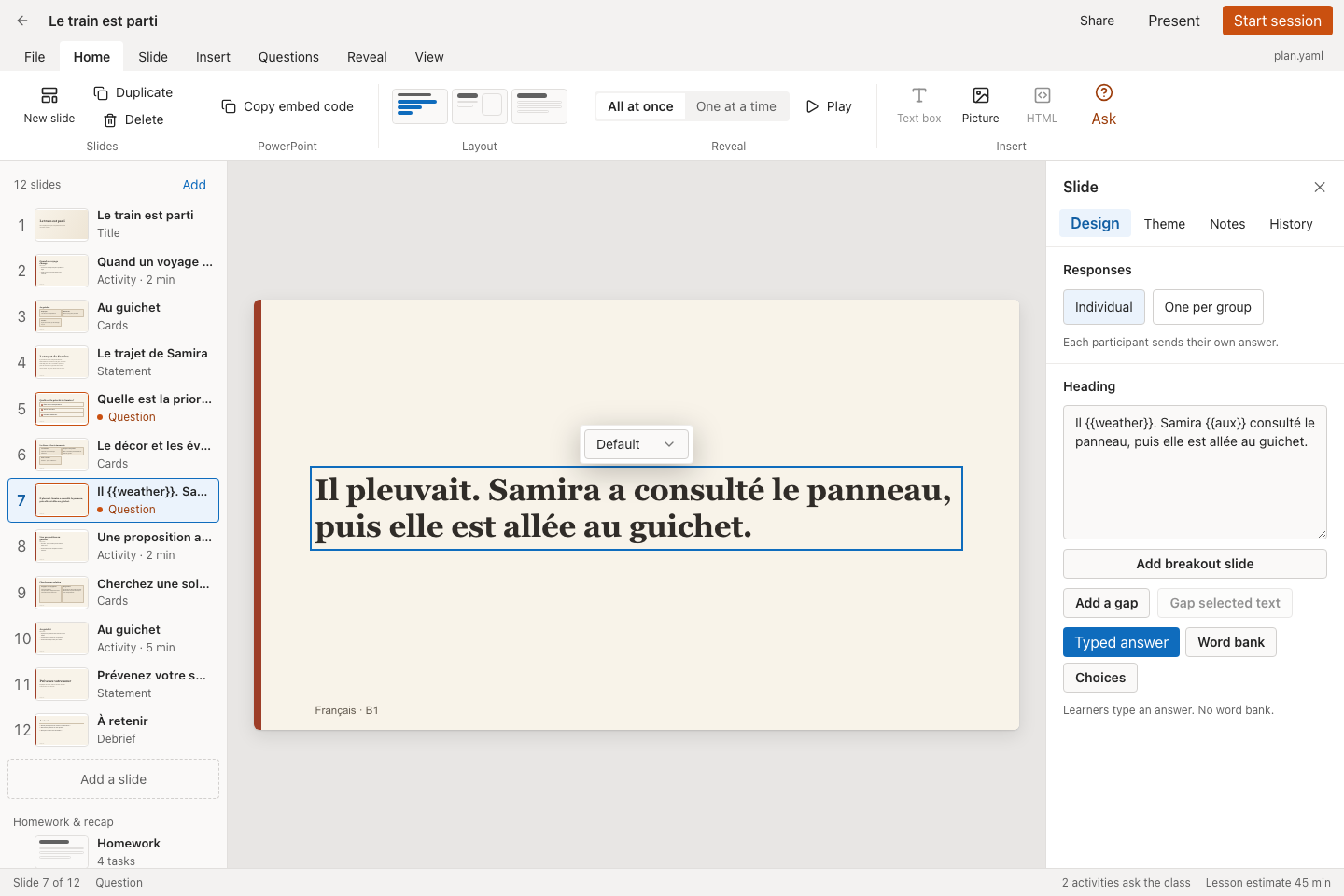
Select the prompt to edit its wording and choose typed answers, a word bank, or choices.
Set answer and reveal policies
Question-level settings override the deck defaults. Configure advanced policies in the outline using an agent or CLI:
| Policy | Effect |
|---|---|
| Result visibility | Live exposes aggregates while responses arrive. Hidden until close withholds them until the response window closes. |
| Answer changes | Allows a participant to replace an answer while the question accepts responses. |
| Countdown | Sets the response window in seconds; expiry closes the question. |
| Peer instruction | Enables a second choice vote after discussion, preserving the first round for comparison. |
| Individual / One per group | Collects separate participant answers or one shared answer from each assigned group’s spokesperson. |
The editor exposes Individual and One per group under Design → Responses. Check the live preview and participant behavior when preparing advanced policies.
Choose a results display
Result styles depend on the interaction type. Choice supports bars, columns, donut, pie, radial and compact count/card variants; scales support dots, gauge, bars or a scale; numeric questions support histogram or a number; text supports a list, cards or word cloud; ranking supports ordered bars and ordering views. Gap and matching exercises use their exercise-specific displays.
In live controls, open the chart/display menu to choose an applicable style and its available presentation options. Use short option labels and inspect the audience display before revealing a result.
For peer instruction, close the first vote, discuss the question, then start the second vote. Compare the rounds after the second response window closes. Undo revote restores the first round and discards the second round’s responses.