Choose participant identity
Prepare the deck’s identity policy through a connected agent or the typed outline before starting:
| Identity mode | Entry and identity |
|---|---|
| Anonymous | Join with the session code; individual names are withheld. |
| Pseudonymous | Join with the code and receive a generated session name, with handle-based recovery. |
| Identified | Use a personal learner credential belonging to the deck’s context; joining opens after the teacher starts. |
| Roster | Use a host-issued invitation naming one seat in one session; lobby entry is available. |
An identified deck needs a real student, group, or class context. Named roster sessions require the named-invitation entitlement. See learner links and roster administration to prepare the corresponding entry addresses.
Start and share entry
Select Start session from a deck or its presenter. The current deck content is saved and captured for the session. The host header shows the connection state, joined count, and answered count for the current question.
For code-based participation, select the join code to copy its link, or open Session menu → Join page. Share the code or QR code with the audience. A named learner session uses personal learner access links. A roster session uses individual invitations for its named seats.
Select Stage in the session menu to open the audience display. If its link has not loaded, select Stage — retry.
Open, close, and reveal a question
Select the question in the rail and open it on the audience display. The selected preview and the active audience question may differ; use the open/show action when you intend to change the audience’s current question.
| Action | Result |
|---|---|
| Open | Make the question active and accept responses. |
| Close | Stop accepting responses. Aggregates follow the configured visibility policy. |
| Reveal results / Call out the correct answer | Show the result and configured correctness information. |
| Hide results | Hide the revealed result while retaining received responses. |
| Reopen | Accept responses again for that question, retaining its existing answers. |
| Next | Reveal the next content group or continue to the next slide/question. |
A question countdown closes responses automatically when time runs out. Closing a question and ending the session are different operations.
Use the chart menu to change the current result display. Text responses can be hidden individually from the result display and restored through moderation controls. Review what the audience will see before projecting sensitive free-text answers.
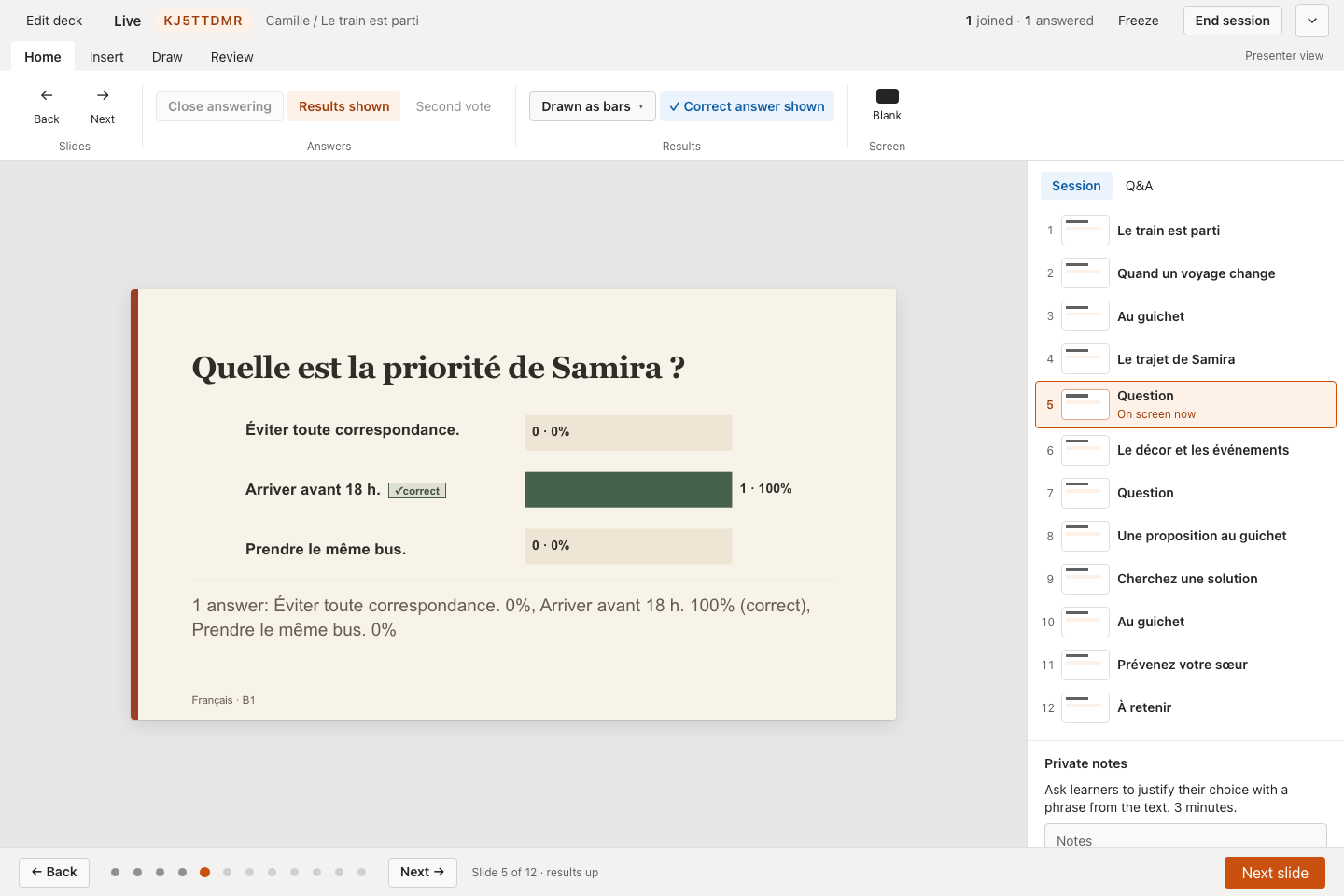
The current question, revealed answers, and presenter controls share one view.
Run a second vote
For a choice question prepared with peer instruction:
- Collect and close the first vote.
- Let participants discuss their reasoning.
- Start the second vote using the revote control.
- Close the second vote and compare the rounds.
The first-round aggregate is retained for comparison. Undo revote restores the first round and discards the second round.
Freeze participation
Select Freeze to pause submissions and hide participant text on the audience display. Use Unfreeze to resume. This is useful when a response needs moderation or the room needs your attention.
Use the ordinary question-close action when only the current question should stop receiving answers. Use Blank to toggle the current question’s audience result visibility.
Control from a phone
Open Session menu → Copy remote link and open that link on your own phone. The remote provides the current question’s actions, previous/next navigation, applicable clock and listening controls, freeze, and session ending.
The remote link carries host authority. Send participant links to the audience and keep the remote link for the presenter. A colleague with shared-space access can obtain their own authorized session connection.
Reconnect and recover
| Connection label | Meaning and action |
|---|---|
| Connecting | Wait for the session connection to initialize. |
| Live | The session is receiving live updates. |
| Polling | Updates are arriving through periodic requests. Continue, allowing for a short delay. |
| Offline | Restore network access. Check the latest slide and question state after reconnecting before sending another action. |
Use the same browser to retain its session connection. On another device, sign in and use Live now in the relevant Library. Shared facilitators should also re-enter through their shared space.
If an operation fails, read the error and wait for reconnection before retrying. Check whether the intended slide or response state has already changed. Starting again deliberately creates another audience session; use recovery to return to the existing one.
End or leave
To finish participation, select End session, then confirm End this session? Participants disconnect and results become final. Continue to Notes or export results as needed.
To return to the deck or Library while participation continues, use the corresponding exit action. The session stays reachable under Live now until it ends. Idle sessions also expire according to the retention policy.