Join with a code or QR code
Open join.openroom.app on your phone or computer. Enter the host’s eight-character code and select Join. A QR code or join link fills the code for you.
Codes are case-insensitive. Use the code displayed for the current session. When the host has not opened a question yet, keep the page open and wait for the next activity.
In a session using generated names, note the name shown under Your session name. It identifies your participation in that session and can help you rejoin from another browser.
Join with a personal learner link
Open the personal session-join address your teacher supplied and select Join. It combines the current session code with your learner credential. The displayed name comes from the learner identity attached to that credential. Keep the separate lesson-page link for homework and feedback.
Named learner sessions admit participants after the teacher starts. If you arrive early, wait and try again once the lesson is live. Keep using your own link so your work stays associated with the correct person.
Join with a roster invitation
Open the individual invitation supplied by the host. It identifies your named seat in one session. The name is supplied by the host, so check it before continuing and contact the host if it is wrong.
Roster invitations can admit participants into the lobby before the host starts. They remain specific to their session. For a later session, use its new invitation.
Answer a question
| Question | How to answer |
|---|---|
| Single choice | Select one option. It sends immediately. |
| Multiple choice | Select the options, then select Send … selected. |
| Scale | Select the value that matches your answer. |
| Numeric | Enter the estimate using the stated unit, then select Send answer. A decimal comma or point is accepted. |
| Text | Type your response and send it. Use the character counter and available accent characters. |
| Ranking | Reorder the items with the move controls, then send the completed order. |
| Fill the gaps | Fill each blank, choose from its options, or use the word bank; then send the answer. |
| Match | Choose the matching right-hand item for each left-hand item and send the completed matches. |
Wait for Answer received or the displayed answered state. When Don’t know is available, use it to submit that response explicitly.
If the host permits answer changes, use the change/edit action while the question remains open. Once the response window closes, wait for the result or the next question. Results and correct answers appear according to the host’s reveal settings.
Answer as a group
For a group question, check your assigned group and spokesperson. Discuss the answer together. The spokesperson sends one response for the group; other members follow the shared answer state.
Ask the host to assign a group or spokesperson if the page is waiting for one. For individual questions, each participant answers separately.
Read slides and listen
Slide preserves the projected slide’s layout. Select Reading for a reading-oriented view of its content. Text highlights follow the words in both views; freehand pen marks belong to Slide view.
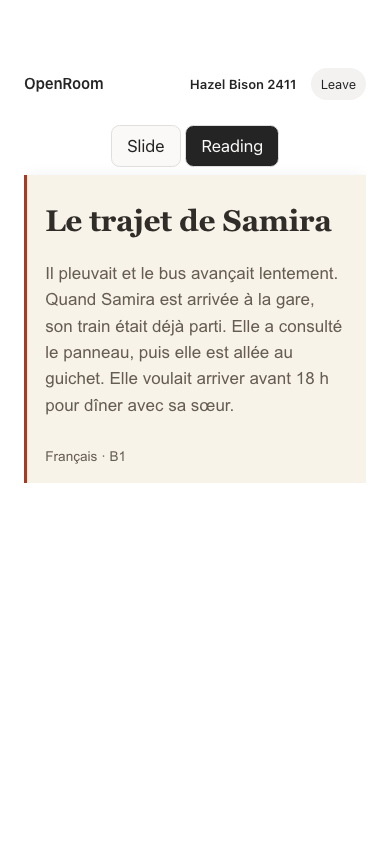
Reading view adapts the passage to the phone’s width.
For Individual listening, use your own audio player. In a room-audio activity, listen to the host’s playback. The transcript appears when the host releases it.
Ask a question
When audience Q&A is enabled, open its question area, type your question, and send it. Use the upvote control beside a question to support it. The host can moderate and spotlight questions.
Rejoin
Reloading in the same browser normally restores its saved participation. Restore network access first if the page reports an offline state.
To recover a generated-name session in another browser, enter the session code, select Rejoin with handle, enter the displayed name exactly, and select Rejoin. For learner or roster participation, reopen the original personal link.
If the host ended the session, use the next session’s code or invitation. An expired or revoked personal link requires a replacement from its issuer.